
What a redline is, and why do it on the PDF
A redline is a mark on the drawing that shows a change: a device that moved, a circuit that changed, a run that went a different way. For years that meant a red pen on a paper print, carried around until it was coffee-stained and then retyped by someone in the office.
Digital redlines are the same marks made on the PDF. They don't get lost, they can be sent the same day, and the office can open them, move them and reply to them instead of squinting at a scan.
What you need
- The current PDF set. Always redline the latest revision, not the one from your last job folder.
- A PC or tablet. Rough-In Redlines runs on Windows 10 and 11, with a mouse or a pen. The iPad, iPhone and Mac app is coming soon, and an Android tablet version is in development.
- Ten minutes. The tools are the ones you already know from paper: pen, cloud, text and a stamp.
How to redline a PDF drawing, step by step
- Open the drawing set. Click Open file and pick the PDF. Pictures and password-protected PDFs open too, and each drawing gets its own tab.
- Go to the sheet. Roll the wheel to scroll sheet after sheet, or click Sheet … of … to jump to one. Hold Ctrl and roll to zoom in on the room.
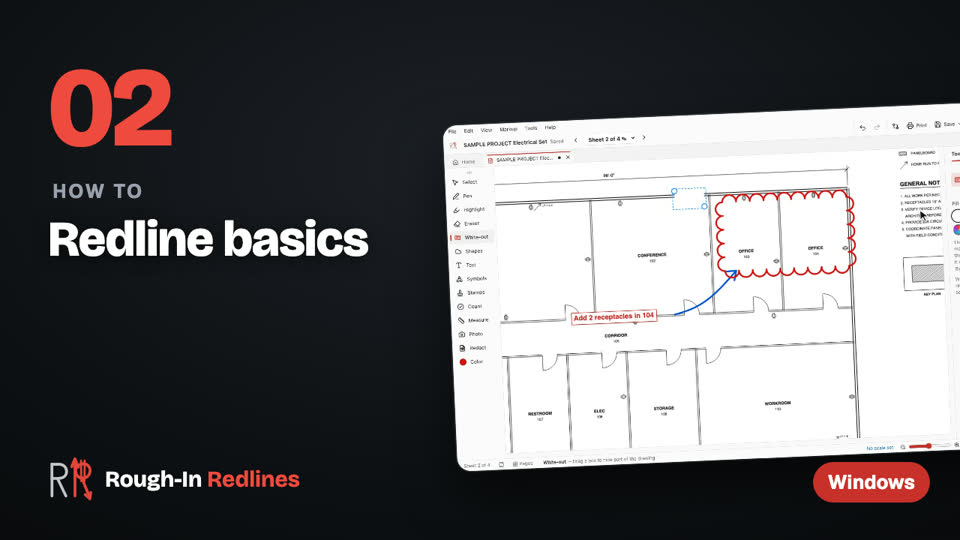
- Cloud the change. Pick Shapes → Cloud and drag around anything that isn't built the way it's drawn.
- Write a short note. Pick Text, click beside the cloud and type. Short and specific wins: “Moved 4' east per GC” or “Homerun to LP-2, not LP-1”.
- Draw what's really there. Cover what's wrong with White-out in white, gray or any fill color, then draw the real route with the pen or place the device from Symbols.
- Stamp or sign it. A stamp adds your initials and the date. Draw your signature once, then click to sign.
- Send it back. Export → PDF for Bluebeam / Acrobat keeps every markup editable. Flattened PDF burns them in for anyone who just needs to read it.
 Video
Video
Redline basics. Pen, clouds, text notes, white-out and undo, on the sample drawing. Steps written out.
Tips for redlines the office can use
- Agree on colors. Many shops use red for added work and green for deleted work. Whatever you pick, use it on every sheet. Saved pens make it one tap.
- One change, one cloud. A cloud around half the sheet tells the office nothing. Cloud each change and give it its own note.
- Put the note next to the cloud. Not in a list in the margin. The person reading it should never have to hunt.
- Send only what changed. On a 180-sheet set, send just the marked-up sheets.
- Keep it editable. If the PM works in Bluebeam or Acrobat, send the PDF for Bluebeam / Acrobat, not a flattened copy, so they can keep working on your marks.
- New revision? Don't start over. Compare it to the old print and bring your markups over.
Try it on one of your own prints. Free for your first 3 drawings on Windows 10 & 11, every tool included, no account. Pro is $39.99 once.
Free · Microsoft StoreComing in the next update
These are built and in testing, and are coming in the next update, not in the app yet:
- Snap to the drawing, so lines start on line ends and corners Next update
- Lengths shown on lines and boxes while you draw Next update
- Align and group markups, and symbols that snap into evenly spaced rows Next update
- Search text across every sheet in the set Next update
For field redlines that become the closeout set, see As-built redlines: a field guide for electricians.
Questions people ask
- Can I redline a PDF drawing for free?
- Yes. Rough-In Redlines for Windows is free for your first 3 drawings, with every tool included and no account. Pro is $39.99 once for unlimited drawings.
- Will my redlines stay editable in Bluebeam?
- Yes. Export the PDF for Bluebeam / Acrobat and your clouds, text and symbols arrive as editable markups in Bluebeam Revu and Adobe Acrobat, with author, subject and date.
- Can I redline drawings on an iPad?
- The iPad, iPhone and Mac app is coming soon to the App Store. Today, Rough-In Redlines runs on Windows 10 and 11 PCs, laptops and tablets.
- Does it work without internet?
- Yes. Every markup tool works offline, and your drawings stay on your device. You only need a connection to send the PDF.